
TeachersFirst Collection: Escape Room Resources
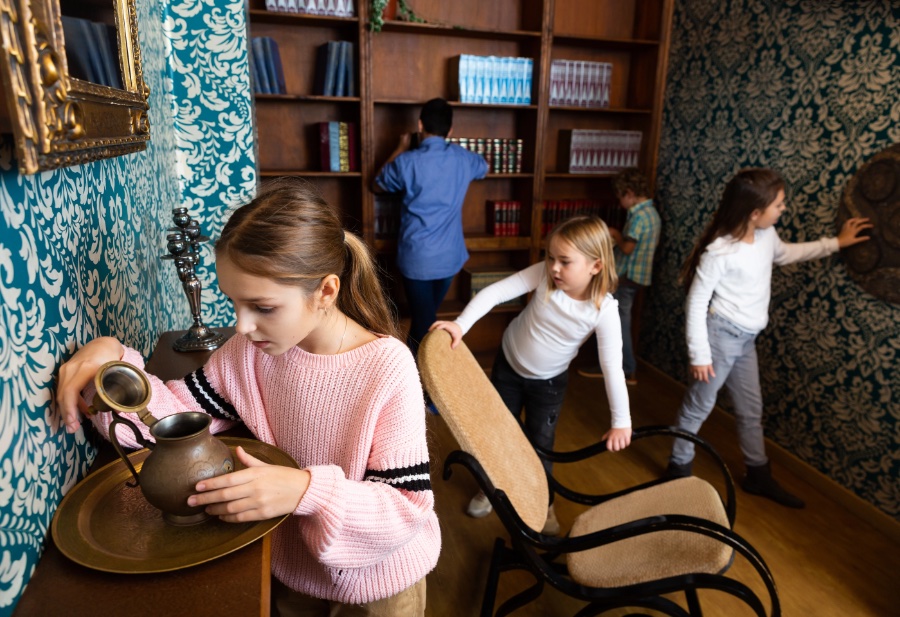
Looking to add some mystery and excitement to your classroom? Digital escape rooms combine critical thinking, problem-solving, and immersive storytelling into engaging educational experiences. We've curated a collection of free tools and resources that make it easy to both play and create digital escape rooms for any subject area or grade level. Whether you're new to educational escape rooms or a seasoned puzzle master, you'll find everything from ready-to-use templates and step-by-step creation guides to inspiring examples that showcase creative ways to transform your curriculum into thrilling digital adventures.
31 Results | sort by:
History Breakout Template - Genially
Grades
6 to 12
tag(s): digital escapes (29), game based learning (309), gamified learning (65), mysteries (30)
In the Classroom
Create interactive escape rooms to introduce history lessons, review for upcoming quizzes and tests, or as an engaging homework activity. As you create your history breakout, use Genially's AI features to generate questions, remove image backgrounds, and create images. Find free images to use with your breakout activity by browsing through resources available on TeachersFirst Special Topics Page for Free Image Resources, reviewed here.You must be registered and logged in to add items to your favorites.
Use the form at the top of the page to log in, or click here to join TeachersFirst (it's free!).
Rebus Generator - festisite
Grades
2 to 8tag(s): digital escapes (29), game based learning (309), puzzles (178)
In the Classroom
Have students create rebus puzzles for their weekly vocabulary words or spelling lists using the generator. They swap puzzles with classmates to solve, reinforcing word meanings in a fun way. Students write a short story or paragraph and replace keywords with rebus puzzles. Classmates decode the rebus to reconstruct the whole story. Use rebus puzzles as hidden clues in a classroom escape room or scavenger hunt. Students must solve them to unlock the next challenge, incorporating problem-solving and critical thinking.Add your comments below (available only to members) | Become a Member
You must be registered and logged in to add items to your favorites.
Use the form at the top of the page to log in, or click here to join TeachersFirst (it's free!).
Virtual Escape Room Tools - VirtualEscapeRooms.org
Grades
4 to 12tag(s): collaboration (142), digital escapes (29), game based learning (309), problem solving (282), puzzles (178)
In the Classroom
Use the Virtual Escape Room Timer to create a themed escape room review for any subject. Set up puzzles using the Caesar Cipher Creator or Emoji Secret Message Maker, and have students work in teams to "escape" by answering questions correctly. Assign students a Secret Agent Name using the generator, then have them write a creative short story or historical journal entry from the perspective of their agent, incorporating key vocabulary or concepts from the lesson. After studying historical codes (ex., the Caesar cipher in Ancient Rome), students create a secret messages using the Caesar Cipher Creator and challenge their classmates to decode them. Use the Team Name Generator to form groups, then have teams design a digital or physical logo using Leonardo.ai, reviewed here and a motto that reflects the subject matter they're studying, such as a "Math Masters" group solving real-world math challenges.Add your comments below (available only to members) | Become a Member
You must be registered and logged in to add items to your favorites.
Use the form at the top of the page to log in, or click here to join TeachersFirst (it's free!).
Microsoft Forms - Microsoft
Grades
K to 12tag(s): assessment (142), polls and surveys (44), spreadsheets (23)
In the Classroom
Discover the benefits of using Microsoft Forms in your classroom to create surveys for parents and students at the beginning of the year to learn about student interests, create parent volunteer lists, and much more. Create a sign-in and sign-out sheet for classroom library materials, including books and digital equipment. Use Microsoft Forms to set up and collaborate on lesson plans, including checkboxes to standards, materials needed, and covered content. Microsoft Forms is perfect for assessment - create online quizzes and exit tickets. Have students use Microsoft Forms to prepare and submit reading logs, brainstorm and collaborate with fellow students, create "choose your own adventure" stories, or schedule reading and writing conference times. Use Microsoft Forms to set up and share rubrics for any project, have students complete the rubric, and turn it in with any completed assignment. Use the practice mode feature to build student confidence by providing practice and review materials before final tests. The uses for Microsoft Forms are as unlimited as your imagination; this is a must-have tool for all classrooms!Edge Features:
Includes an education-only area for teachers and students
Requires registration/log-in (WITH email)
Premium version (not free) includes additional features or storage
Products can be embedded
Products can be shared by URL
Multiple users can collaborate on the same project
Includes teacher tools for registering and/or monitoring students
Add your comments below (available only to members) | Become a Member
You must be registered and logged in to add items to your favorites.
Use the form at the top of the page to log in, or click here to join TeachersFirst (it's free!).
Room Escape Maker - doctorfou.com
Grades
8 to 12This site includes advertising.
tag(s): game based learning (309), game making (23), makerspace (42), study aid (175)
In the Classroom
Increase student engagement in any subject through this form of gameplay! Create games to introduce the main concepts within the escape room. Ask students to create a game using what they have learned to share with their peers. Before creating a game, have students map out information and strategies they will include in a blog format using a tool like edublogs, reviewed here. Ask fellow students to share comments describing their problem-solving process as they try to escape the room.Add your comments below (available only to members) | Become a Member
You must be registered and logged in to add items to your favorites.
Use the form at the top of the page to log in, or click here to join TeachersFirst (it's free!).
Google Forms - Google
Grades
K to 12tag(s): polls and surveys (44), spreadsheets (23)
In the Classroom
Take advantage of the flexibility of Google Forms to create surveys for parents and students at the beginning of the year to learn about student interests, create parent volunteer lists, and much more. Create sign in and sign out sheets for classroom library materials including books and digital equipment. Use Google Forms to set up and collaborate on lesson plans, include check boxes to standards, materials needed, and covered content. Google Forms is perfect to use for assessment purposes - create online quizzes and exit tickets. Have students use Google Forms to prepare and submit reading logs, brainstorm and collaborate with fellow students, create choose your own adventure stories, or schedule reading and writing conference times. Use Google Forms to set up and share rubrics for any project, have students complete the rubric and turn in with any completed assignment. The uses for Google Forms are as unlimited as your imagination; this is a must-have tool for all classrooms!Add your comments below (available only to members) | Become a Member
You must be registered and logged in to add items to your favorites.
Use the form at the top of the page to log in, or click here to join TeachersFirst (it's free!).
Genially - Genially
Grades
K to 12This site includes advertising.
tag(s): artificial intelligence (358), charts and graphs (183), communication (126), digital storytelling (182), gamified learning (65), images (276), infographics (72), interactive stories (23), multimedia (71), posters (44), study aid (175)
In the Classroom
Click Create to find a category from which you want your students to work; present several using a projector or on an interactive whiteboard. Show the interactivity to students. Then, create one together as a class to try out the tools (don't forget to name it). Keep it simple or add all the bells and whistles. Preview as you work or return later to complete and publish. Of course, you will want to model and teach appropriate documentation of any sources of images and media you use and to use copyrighted works legally.There are limitless ideas for using Genially in the classroom! Here are just a few: Ask students to create their own Genially as a new way to assess understanding of a concept or unit of study: you could even provide links to images and raw materials they may use (especially if you have students who need extra scaffolding), and they can work with them to sequence, caption, and write about the pieces. After a first project where you possibly suggest "building blocks," the sky is the limit on what they can do. Even the very young can make suggestions as you "create" a whole-class interactive together using a projector or an interactive whiteboard. Consider making a new project for each unit you teach so students can "recap" by visiting the presentation long after the unit ends. Save student projects from year to year as examples, possibly even awarding prizes for "best" examples. Have upper elementary or middle school students create an interactive project to help "little buddies" two or three grades lower to understand a concept.
Comments
This is a wonderful interactive poster replacement for Glogster.Shirley, CA, Grades: 6 - 12
Add your comments below (available only to members) | Become a Member
You must be registered and logged in to add items to your favorites.
Use the form at the top of the page to log in, or click here to join TeachersFirst (it's free!).
Sway - Microsoft
Grades
3 to 12tag(s): communication (126), digital storytelling (182), Microsoft (47), multimedia (71), slides (40), visualizations (16)
In the Classroom
Use Sway as an alternative to Prezi or PowerPoint presentations. Sway is perfect for use in your BYOD or 1:1 classroom. Use during your presentations to increase student engagement and interaction. Check your ENL/ESL students' understanding by having them respond or ask questions throughout the presentation. Enhance student learning and understanding by sharing with students for use during their own presentations, and inviting other students to comment and answer questions. During Open House night with parents, demonstrate how Sway provides interaction. Use Sway during professional development presentations to invite colleagues to discuss.Add your comments below (available only to members) | Become a Member
You must be registered and logged in to add items to your favorites.
Use the form at the top of the page to log in, or click here to join TeachersFirst (it's free!).
Nearpod - Nearpod
Grades
K to 12When in the "live presentation" mode (in person or remote web conferencing), teachers control the lesson's pace, and students do not move to the next screen until advanced by the teacher. With the "student pace" mode, students progress through independently, whether at home or in class. The third mode is "front of the class;" you project your presentation, and the students do not use their devices. Use the teacher version of the app to push out the presentation to your students. For the first two modes, every student uses their own student app to follow the screens and answer the questions. This provides immediate feedback about every student. The feedback can be emailed to the teacher for later review. This formative assessment tool is invaluable and a unique part of the app. The tool also includes drawing for students to work out problems. Teachers can identify students who are not "on task" and not working within the app when a little red light pops up. Absent students can complete the assignment at home.
The free version of Nearpod for Educators is called Silver; you get 100 MB of storage, 40 students per session/lesson, access to standard formative assessments features, pre-made interactive lessons up to your storage limit, pre-made interactive videos up to your storage limit, create interactive videos, lessons, and activities, upload PDF, PPT, and Google slides, and more. Again, how many lessons and videos will depend on your storage.
tag(s): assessment (142), classroom management (154), DAT device agnostic tool (134), differentiation (103), Formative Assessment (48), gamified learning (65), Learning Management Systems (19), multimedia (71), Online Learning (35), personalized learning (13), playlists (7), remote learning (33), slides (40), Teacher Utilities (233), teaching strategies (88)
In the Classroom
This is an exciting way to begin iPad (or BYOD), blended learning, or remote learning integration into the classroom. Initially it may be difficult to determine the best pacing of the lesson, the ability to slow down the advancement of the next screen allows more time to digest the information. Be aware that students needing more time may be very frustrated as the screen may advance before they are able to finish. Start small by uploading presentations and using JPEG and other images. Add interactive elements such as polls and videos. Grab students attention by using the first slide to deliver a piece of humorous information. Create guided learning stations and push out several presentations to different devices as students move through the various lessons to be learned. This technique can be helpful for struggling learners. Use this tool to help reinforce the most difficult parts of the lesson. Use the app to create schedules for training, clubs, and more. For English, learn about grammar rules, sentence structure, and other elements necessary for good writing. For ENL/ESL classes and world languages, practice various vocabulary words and learn tenses of verbs. Learn vocabulary and basic scientific concepts in any science class or facts about historical periods in history classes. This app is a valuable tool in any classroom.Add your comments below (available only to members) | Become a Member
You must be registered and logged in to add items to your favorites.
Use the form at the top of the page to log in, or click here to join TeachersFirst (it's free!).
Jigsaw Planet - Tibo Software
Grades
K to 12In the Classroom
Use these puzzles on your projector or interactive whiteboard! Each puzzle is timed as you put it together. Split students into teams to see which team can complete the puzzle the fastest. Instead of the typical PowerPoint type presentation to teach students facts, create a puzzle for them to put together and have them read the fact once the puzzle has been completed. Turn your classroom rules into a series of jigsaw puzzles for students to put together. Honor your star student of the week by creating a puzzle of that student. Just take a picture of the student and upload to Jigsaw Planet. Students can use Jigsaw Planet to create their own puzzles. This is a great place for them to study. They can upload spelling words, math facts, maps, etc. Students will love creating their own jigsaw puzzles. If you have a projector or an interactive whiteboard, have students create a puzzle all about them. They can create a collage of things they like in a presentation program, take a screen shot of it, and upload the puzzle to Jigsaw Planet. Students can put together each other's puzzles and guess who the student is based on the pictures. This would be a great getting to know you activity for the first week of school!Add your comments below (available only to members) | Become a Member
You must be registered and logged in to add items to your favorites.
Use the form at the top of the page to log in, or click here to join TeachersFirst (it's free!).
Google Sites - Google
Grades
K to 12tag(s): wikis (15)
In the Classroom
Users must have a Google account or sign up for an account. View the controls in Google sites before creating to get an idea of usable features. Find great hints and tips about using Google sites here.Click "Create a new site" to name your site and begin the process. Choose from a variety of templates and begin building your pages. Click "Edit" on your page to bring up the editing options. Use the buttons on the editor bar to change font sizes, color, etc. Click "Insert" to view a drop down menu of a variety of content that can be included on the page. Use the other tabs such as "Format," "Table," and "Layout" to change other aspects of the page. Be sure to click the "Save" button when finished editing a page. Create a new page within the site by clicking "Create a page." Choose from a variety of pages that have different formats suited for a web page, announcements page, file cabinet, or list. Be sure to select where the page will be found such as the top level menu or as a subpage under a different page in the site. Click on "More actions" to bring up other menu items such as "Manage Site," changing page settings, moving or deleting a page, and more. Share your site with others and invite users who can also make changes on the site.
Use a Google Site to create a simple web page for communication with students and their families at any grade level. In middle and high school, use student-created site(s) as a way for students to collaborate and share with many of the same features as a wiki.
Comments
Very versatile for portfolios. Does take some work, not particularly well-documented.Frances, CT, Grades: 6 - 8
Add your comments below (available only to members) | Become a Member
You must be registered and logged in to add items to your favorites.
Use the form at the top of the page to log in, or click here to join TeachersFirst (it's free!).
Add your comments below (available only to members) | Become a Member
Close comment form